
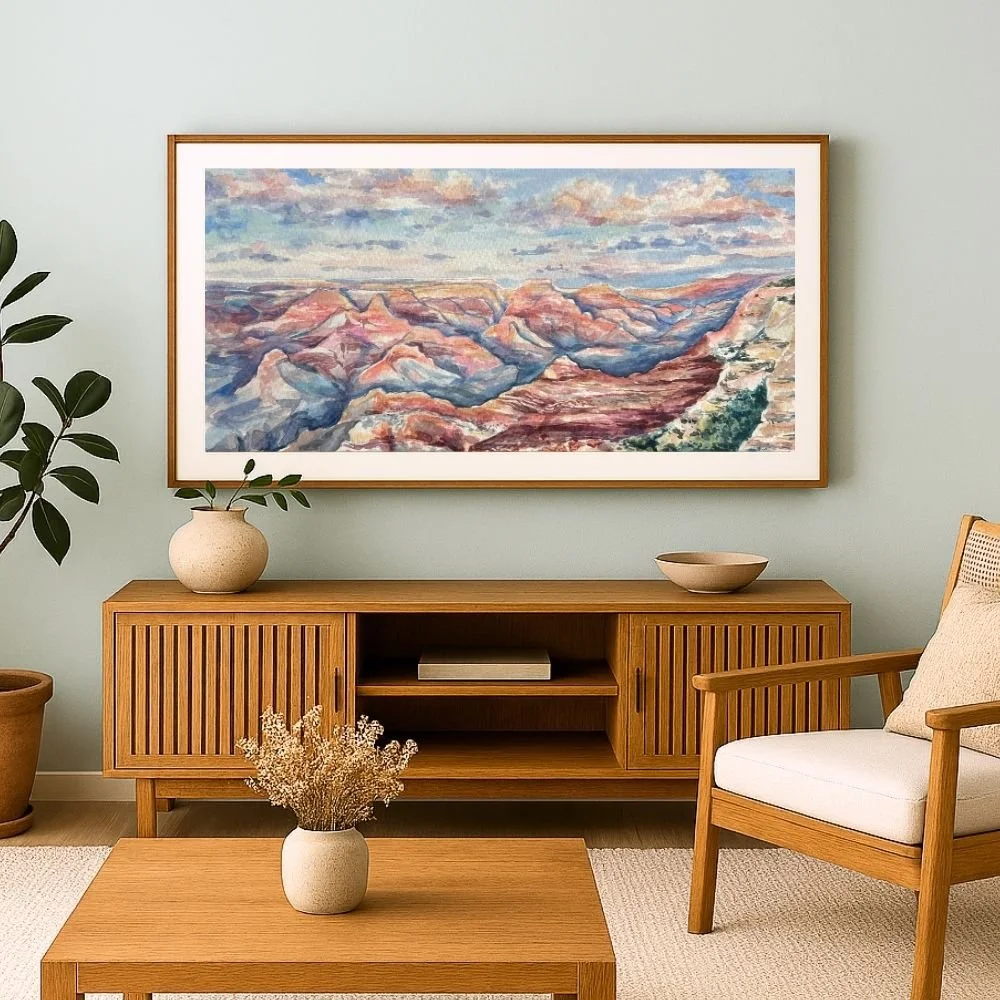
 Image 1 of 2
 Image 2 of 2
-
Displaying Your Digital Art on the Samsung Frame TV
Downloading Your Files
After purchase, use the provided link to download your artwork. Files will save to your device’s Files or Downloads folder. If the download is a ZIP file, tap it once to unzip and access the images.
To display artwork on your frame TV - begin by downloading the app called SmartThings on your iphone or android.
Saving Images to Your Photo Gallery
SmartThings can only upload images stored in your device’s photo gallery.
Open your Files or Downloads folder.
Tap the image to open it.
Select Share → Save Image (iPhone) or Save to Gallery (Android).
The artwork will now appear in your Photos app.
Uploading Art to Your Samsung Frame TV
Open the SmartThings app.
Select your Frame TV.
Tap Art Mode.
Choose Add Your Photos or My Photos.
Select the artwork from your photo gallery.
Adjust matting (recommended: No Mat).
Tap Set on TV.
Recommended Display Settings
Use No Mat for a clean, gallery-style look.
Set Brightness between 5–7 for a natural appearance.
If your file includes a border, keep Matting Off.
Troubleshooting
If the image appears cropped, adjust Mat Options in Art Mode.
Ensure your phone and TV are on the same Wi-Fi network.
Confirm the image is saved to your photo gallery, not just your Files app.
Watch this video to see how to navigate the app and sync the painting with your TV https://youtu.be/61p3CYoFxIY?si=-Ypgju9uC9OXx2ou